
How to use the port monitor
One live panel per device.

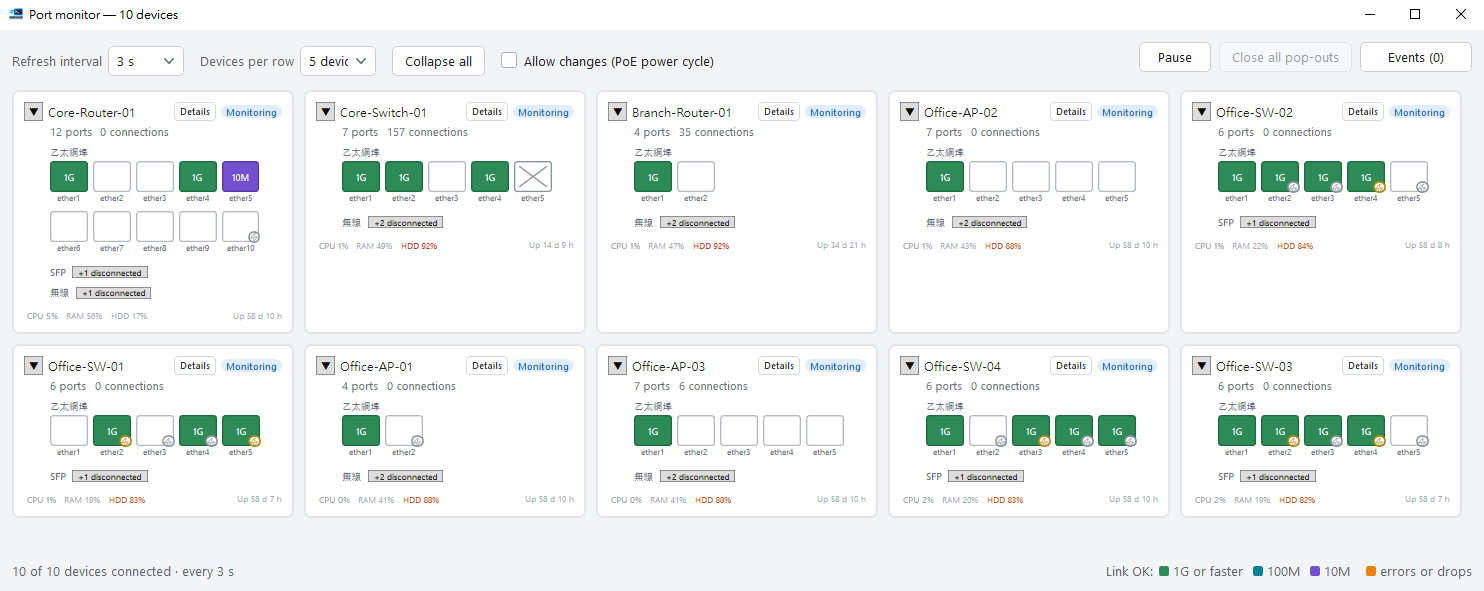
Open it#
Select devices and click Port monitor. It needs the WinBox protocol (8291).
Reading the panel#
- Colour shows link speed; orange means errors.
- Lights blink faster with more traffic.
- Lightning icon means PoE power.
Details and events#
Click a port to see its traffic and status. Drops, reconnects and PoE changes are logged on the event timeline.
PoE power cycle#
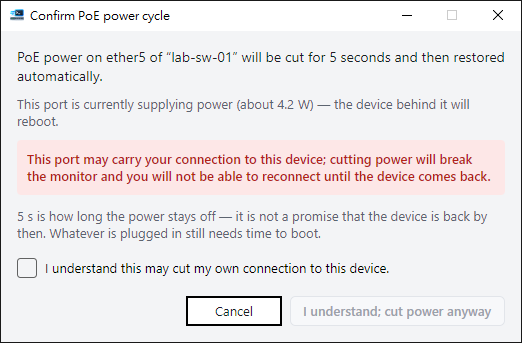
On PoE ports you can cut and restore power to restart a stuck camera or AP. This really interrupts power, so it asks first.
Tips#
- Right-click a panel to open the device in WinBox, open a console, or copy the status of every port.
- The Health button on a card takes that device to a health check.
- Click a port to open its detail window. You can silence the one-way traffic warning for just that port.
- Before a PoE power cycle, the confirmation shows the current draw in watts. If the port may be your own path to the device, you must tick an extra box to continue.