
How to run commands on many devices
One script, sent to the devices you choose.

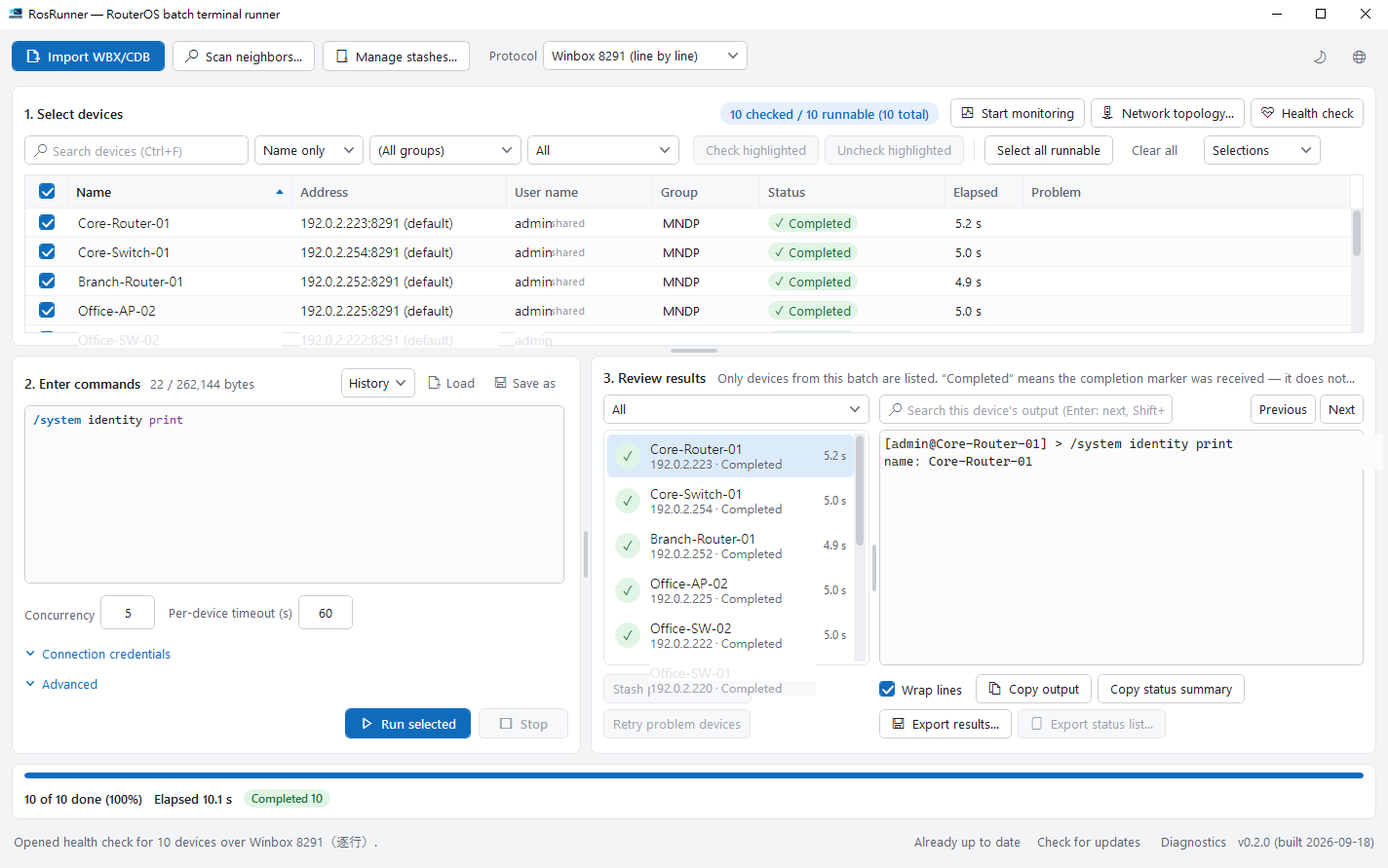
1. Open the batch window#
Select devices on the home screen and click Batch commands (Ctrl+R). The window remembers this selection; later changes on the home screen won’t affect this run.
2. Enter commands and confirm#
Type or load your commands and click run. The confirmation uses colour for risk: blue only reads, amber changes settings, red is high-risk such as a reboot.
3. Try one first#
For commands that change settings, choose Try 1 device first. If it looks right, release the rest.
4. Read the results#
Each device has a row you can search and export. “Completed” means the device finished the script, not that every line had the intended effect — check important changes. Results marked uncertain after a disconnect are never resent automatically.
5. Retry#
Select the devices that had trouble and retry just those, or save them as a group for later.
Tips#
- When a command contains destructive words such as reset or remove, the confirmation window asks you to type the device count.
- "Stop after consecutive failures" defaults to 3: if that many devices in a row fail after the command is sent, the batch stops. Devices that cannot connect or fail to log in do not count. Set it to 0 to turn this off.